Blink Home Monitor
- 4.5
- Rating
- 10.00M
- Installs
- Free
- Price

 Analysis by App-foxy
I use Blink Home Monitor as a practical way to keep an eye on Blink security cameras from my phone, rather than treating it as a complete smart-home command center. That distinction matters. The app is focused, familiar, and easy to understand, but its usefulness depends heavily on how many cameras you have, how often you check them, and how quickly your home network can deliver live video. For someone already using Blink hardware, it is the central place to view activity and manage everyday monitoring. For someone comparing camera ecosystems from scratch, its focused approach is both an advantage and a limitation.
Developed by Immedia Semiconductor, this free tools app is available for everyone and has built a substantial audience, with an average rating of 4.4 from roughly 197 thousand ratings. It has passed ten million installs, which makes it one of the more established choices for people who want phone-based access to Blink cameras. I would not read those figures as a guarantee that every setup will feel identical, though. Camera placement, wireless coverage, phone hardware, and the number of devices being watched all affect the experience more than the app label alone.
What using Blink Home Monitor feels like day to day
The first thing I noticed is that the app makes the most sense when I approach it with a specific question: “What is happening at home right now?” That could mean checking the front entrance after hearing a delivery notification, looking at a pet’s usual area, or confirming that a room is quiet while I am away. It is less useful when I expect it to replace every other smart-home application on my phone.
You May Also Like

 Blood Strike: 2.5 Anniversary
Blood Strike’s Loadouts Turn Every Drop Into a Tactical Gamble
A close look at Blood Strike’s custom loadouts: how fast access to signature weapons reshapes its battle royale rhythm, rewards preparation, and narrows the gap between fights.

 Pandora - Music & Podcasts
Pandora’s Music Is Easy to Start, but Harder to Recover
Pandora’s strength is its low-effort path from a seed to a station. Its weak spot is how much confidence it asks you to place in connection, setup, and quiet recovery.

 8 Ball Pool
 Is Built on Rivalries, Rematches, and Routine
A close look at the rivalries, rematches, shared routines, and unanswered safety questions that turn a quick pool match into a persistent mobile community.

 Samsung Music
’s Quiet Strength Is Playing What You Already Own
Its reach comes less from spectacle than from dependable access to a personal library. That simplicity is both the app’s strongest retention engine and its ceiling.

 AccuWeather: Weather Radar
AccuWeather Review: A Quick, Clear Forecast for Everyday Decisions
For everyday plans, the best forecast is the one you can understand quickly. AccuWeather makes rain timing, radar, and local conditions easy to act on, with a few trade-offs.

 Hill Climb Racing
Why Hill Climb Racing Still Turns Crashes Into One More Run
A tiny car, a bumpy hill and one more upgrade: Hill Climb Racing keeps resurfacing because its simple chaos makes every near-miss feel personal.
More From Our News Desk



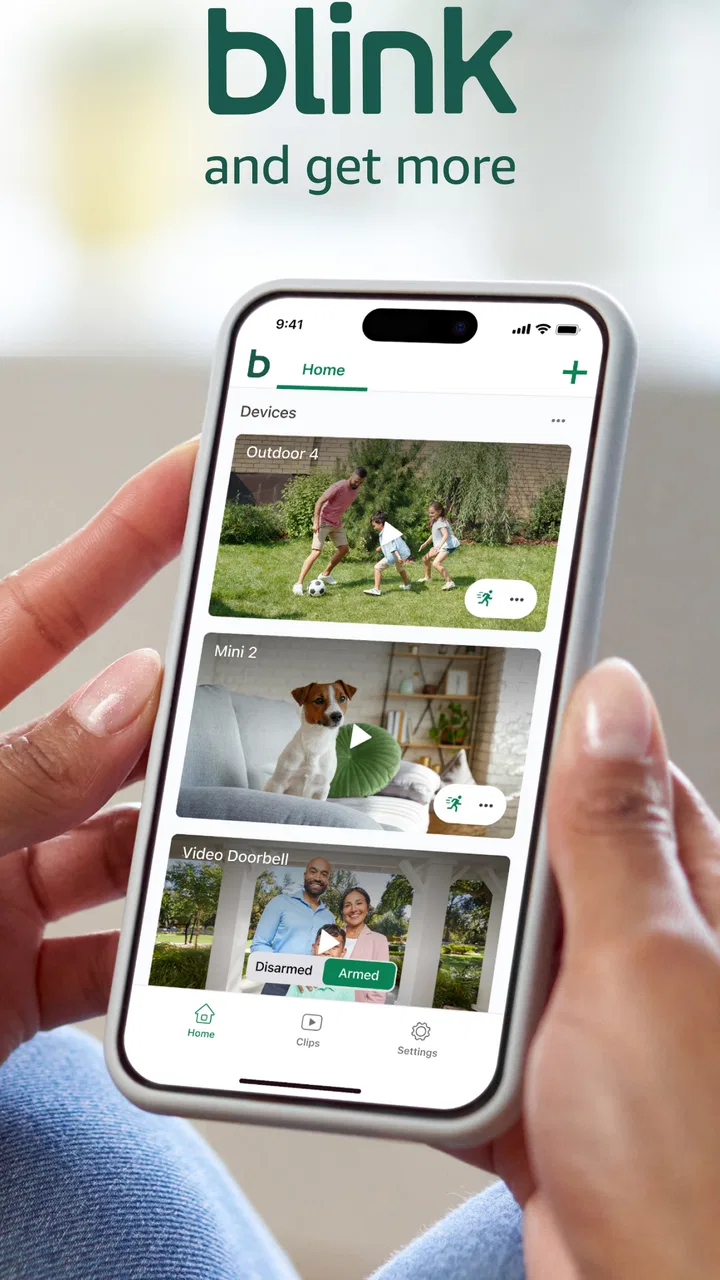
The store presents it as smart-home security monitoring from Blink and Amazon, but in practical use I see it primarily as a camera companion. Its value comes from bringing Blink camera views and monitoring controls into one mobile workflow. That narrow purpose helps keep the experience approachable. I do not have to search through unrelated automation tools before reaching the camera view I need.
My normal routine would be to open the app, scan the available camera views, and select the one that answers the immediate question. For a single-camera home, that process is naturally straightforward. With several cameras, the layout becomes more important: naming cameras clearly and placing them where I expect reduces hesitation when something happens. A name such as “side gate” is more useful in a hurry than a vague room label, especially if multiple cameras cover similar areas.
A useful habit is to decide in advance which views deserve frequent attention and which ones are only occasional checks. Constantly opening every camera can make the app feel busier than it needs to be. I prefer using the main view for a quick overview, then opening a specific camera only when I need detail. This is a small workflow choice, but it makes a noticeable difference for anyone managing more than one part of a home.
Speed expectations before you rely on live video
I would describe the app’s perceived speed as conditional rather than universally fast or slow. Opening a monitoring app is not the same as opening a notes or messaging application: the moment I request a live camera view, the phone has to connect to the camera and receive video through the network. A short wait can therefore come from the camera, the home connection, the phone connection, or the route between them.
That means I would not judge Blink Home Monitor only by how quickly its interface appears. The more meaningful test is how smoothly it moves from the camera list to a usable view. When the network is healthy and the camera has a clear connection, the process feels direct. When the connection is weak, the waiting becomes part of the monitoring experience, regardless of how responsive the menus feel.
For urgent checks, I recommend opening the app before you actually need it. This sounds obvious, but it avoids discovering a sign-in issue, a camera connection problem, or a poor signal at the exact moment you are trying to verify something important. I also find it sensible to test each camera from the places where I normally use the phone. A camera that works well beside the router may not feel equally responsive from a distant room or while using mobile data outside the home.
The app is better suited to confirmation than to continuous, professional-style surveillance. I would use it to answer a question about a doorway or room, not to assume that a phone screen can provide a flawless uninterrupted security feed all day. That distinction keeps expectations realistic and helps explain why occasional loading or reconnection is more tolerable in a casual check than during constant observation.
What happens during heavier monitoring sessions
Light use is simple: open the app, check a view, and close it. Heavier use begins when I move between several cameras, repeatedly open live views, or keep monitoring active while doing other tasks on the phone. At that point, the experience depends more on the whole setup than on the application alone. Video places a different demand on a phone and connection than a static dashboard, so long sessions deserve a little planning.
My practical advice is to avoid opening every view merely out of curiosity. If I am checking a delivery area, I start with the camera most likely to show the entrance. If I am checking on a pet, I go directly to that room. This reduces unnecessary transitions and makes the app feel more controlled. It also helps preserve the phone’s attention for the one feed that actually matters.
There is a trade-off between convenience and detail. A quick overview is efficient, but a live view is what I need when I want to inspect movement or confirm a specific situation. Switching back and forth repeatedly can feel less comfortable than choosing one camera, watching long enough to answer the question, and then returning to the overview. Users with several Blink cameras should think of the app as a set of targeted checks rather than a wall of screens.
I would also avoid making the app part of a routine that requires uninterrupted phone use for hours. A long monitoring session can be more demanding than occasional checks, particularly on an older phone or when the device is already handling navigation, calls, and other connected tasks. The app is most convincing when it is used for short, purposeful visits rather than as a permanent foreground display.
Another realistic situation is checking home activity while travelling. I might open a camera after receiving an alert or after a neighbour mentions something unusual. In that case, the phone’s current connection becomes just as important as the home setup. If the view takes longer to load away from home, I would first test another camera and retry once before assuming that the camera itself has failed. A single delayed view is not enough evidence of a permanent problem.
Stability, interruptions, and recovery
Reliability matters more to me here than visual polish. A security camera app earns trust when it gives me a predictable path from opening the app to understanding what is happening. Blink Home Monitor works best when I treat it as a monitoring tool that may occasionally need a second attempt, rather than as an invisible service that can never be interrupted.
When a view does not load properly, my recovery sequence is deliberately simple. I return to the camera list, try the same camera once more, and then test another view if one is available. If every camera behaves the same way, I look at the phone’s connection and the home network before blaming a single camera. If only one camera is affected, I focus my attention there instead of repeatedly restarting the entire app.
This approach is more useful than immediately clearing everything or reinstalling. Reinstallation can create additional setup work, while a temporary network interruption may resolve itself without drastic action. I would reserve stronger troubleshooting for a pattern that continues across repeated checks. The important point is that the app gives me a recognizable recovery path: step back, isolate the problem, and retry in a controlled way.
Stability also includes how well the app behaves after I leave it and return later. Monitoring tools often sit unused for long periods, so I do not want to keep them permanently open just to feel prepared. In my experience, it is more practical to launch it when needed and judge whether the camera list and selected view recover normally. That keeps the workflow cleaner and avoids turning the phone into a dedicated security screen.
I would still avoid relying on any phone application as the only response to a serious security concern. A delayed notification, a dead phone battery, a camera without connectivity, or a home network problem can all interrupt the chain between an event and my awareness of it. Blink Home Monitor is useful as one part of a monitoring arrangement, but I would not treat the app alone as a substitute for sensible home security habits.
Phone limitations and device expectations
The current version is 53.1, and the minimum operating system is Android or iOS 10. That broad compatibility is helpful for people who keep an older phone in service, although compatibility on paper does not guarantee identical performance on every device. A newer phone usually has more comfortable headroom for switching between live video and other apps, while an older model may make multitasking feel less pleasant.
Storage and background activity are also worth considering without turning them into a technical project. I would keep enough free space for the phone to operate comfortably, close demanding apps if the device is struggling, and avoid judging the monitoring experience while the phone is already overloaded. These are ordinary maintenance steps, but they matter more when an app is handling camera video instead of simple text and menus.
Screen size changes the experience too. A compact phone is perfectly suitable for checking one camera, but a larger display makes it easier to inspect a scene without constantly zooming mentally into a small image. On a tablet-sized device, the app may be more comfortable for a household member who wants a clearer view, though the basic question remains the same: is the camera feed available when it is needed?
Battery expectations should be realistic. Occasional checks are very different from leaving a live view open while walking around the house or travelling. If I know I will monitor for a while, I start with a well-charged phone and avoid combining the session with other demanding activities. This is not a special flaw unique to Blink Home Monitor; it is a normal consequence of using a mobile device for live camera viewing.
The app is a better fit for people who already have a reasonably dependable network around their cameras. If the home connection is unreliable, the application can expose that weakness quickly because every check depends on a successful path to the camera. In that situation, improving camera placement or network coverage may produce a larger benefit than changing phone settings.
Useful workflows beyond simply opening a camera
One of the less obvious strengths is that the app can become a routine tool rather than something I open only after a scare. I can use it for a quick departure check, confirming that a particular area looks normal before leaving, then close it. This is more efficient than repeatedly checking every camera without a purpose. The app works best when I build a small set of repeatable actions around the views that matter most.
Another useful workflow is separating “verification” from “investigation.” Verification means checking whether a door area, hallway, or pet space looks normal. Investigation means spending longer trying to understand an unusual event. I start with verification because it is faster and less demanding. Only if the view raises a real question do I stay in the live feed or move to another camera. This keeps casual monitoring from becoming an unnecessarily long session.
Camera naming is a surprisingly important detail in multi-camera homes. I recommend labels based on what the camera shows rather than where the camera physically sits. “Back steps” tells me what I can inspect; “upstairs camera” may be ambiguous if there is more than one upstairs view. Clear labels reduce mistakes when I am tired, distracted, or checking the app quickly outside the home.
I also find it helpful to decide which camera should be checked first for common events. For a delivery, that might be the entrance. For an unusual sound, it might be the nearest interior or exterior view. This turns the app into a small decision system: event, first camera, second camera if needed. It is a simple habit, but it makes a multi-camera setup feel far less scattered.
Where it compares well, and where another option may be better
Compared with a general smart-home hub, Blink Home Monitor feels more focused. That is a benefit if my priority is checking Blink cameras without navigating a large collection of unrelated devices. A broader home platform may be preferable if I want lighting, thermostats, locks, sensors, and cameras managed through one interface. The choice depends on whether I value a dedicated camera workflow or a single dashboard for many brands and device types.
Compared with checking cameras through a browser or a manufacturer-neutral service, the dedicated mobile app is more natural for quick checks away from a desk. I can reach for the phone when I hear a sound or want to confirm an arrival. The trade-off is that I am working within the Blink ecosystem. If my home already mixes several camera brands, a broader platform may offer a more unified experience, though it may also introduce its own complexity.
It is also not the right choice for someone who wants a camera system without committing to Blink hardware. The app’s usefulness is tied to that product family, so a person starting with no compatible cameras should compare the complete ecosystem rather than choosing an app in isolation. Hardware cost, camera placement, network quality, and the way alerts fit into daily life will matter more than the app’s download price, which is free.
Families should think about who will use the app and how. A technically confident user may be comfortable checking connections and retrying a view, while someone who only wants a guaranteed one-tap answer may prefer a simpler arrangement with fewer cameras and fewer decisions. The Everyone age rating makes it broadly accessible, but ease of use still depends on the household’s setup and expectations.
My performance verdict after weighing the trade-offs
I see Blink Home Monitor as a practical, focused companion for Blink camera owners. Its strongest quality is not that it eliminates every delay or network problem; it is that it gives me a clear mobile route to the cameras I want to check. For short, purposeful monitoring, that is enough to make it useful. The experience feels most dependable when the home network is sound, the cameras are named clearly, and I use targeted checks instead of demanding constant video from the phone.
The main limitations are equally clear. Live video is more demanding than ordinary app content, repeated camera switching can become cumbersome, and a phone application cannot guarantee uninterrupted awareness of a security event. Older devices and weak connections may make the experience less comfortable, especially during extended sessions. I would not choose this app as a universal smart-home controller or as the sole layer of protection for a property.
Still, the combination of a free download, broad operating-system support, and an established user base makes it easy to try if Blink cameras are already part of the home. The developer, Immedia Semiconductor, has kept the product centered on the monitoring task rather than burying it beneath unrelated controls. That focus is exactly why I would recommend it to a friend who wants straightforward phone access to Blink cameras.
My recommendation is simple: choose Blink Home Monitor when your priority is checking Blink camera views from a phone, especially for quick arrival, pet, entrance, or travel checks. Before depending on it, test the cameras from the places you normally use the app, give each view a clear name, and practice the retry workflow. If you want one application to control a mixed smart home, or if you require uninterrupted professional surveillance, a broader or more specialized alternative will suit you better.
For the right household, though, it does its central job without unnecessary ceremony. I open it to answer a question, inspect the relevant view, and move on. That focused experience, combined with sensible expectations about network and device limits, is what makes the app worth keeping on my phone.
FAQs for Blink Home Monitor
01What features does the Blink Home Monitor app offer?
The Blink Home Monitor app allows users to manage and monitor their Blink security cameras from anywhere. Key features include live HD video streaming, motion detection alerts, two-way audio communication, customizable motion zones, and integration with Alexa-enabled devices. The app also offers cloud storage for video clips, ensuring easy access and review.
02Is the Blink Home Monitor app compatible with all Blink devices?
Yes, the Blink Home Monitor app is designed to work with all Blink security cameras, including Blink Indoor, Blink Outdoor, Blink Mini, and Blink XT2. The app provides a unified interface to manage multiple devices, allowing users to monitor different locations effortlessly. Regular updates ensure ongoing compatibility and feature enhancements.
03How does the Blink Home Monitor app handle privacy and security?
Blink prioritizes user privacy and security with end-to-end encryption for video feeds. The app requires user authentication, and all data stored in the cloud is protected. Users can control device settings and permissions directly through the app, ensuring that only authorized users have access to live streams and recordings.
04What are the system requirements for the Blink Home Monitor app?
The Blink Home Monitor app is available for Android and iOS devices. For Android, a device running version 5.0 (Lollipop) or higher is required. For iOS, the app supports devices running iOS 10.0 or later. It's recommended to have a stable internet connection for optimal performance and real-time monitoring.
05Can I use the Blink Home Monitor app to view multiple cameras simultaneously?
Yes, the Blink Home Monitor app supports viewing multiple cameras at once. Users can access a multi-camera view to monitor different locations in real-time. This feature is particularly useful for users with multiple Blink devices, providing a comprehensive security overview without the need to switch between individual camera feeds.
Pros
- Easy-to-use interface for quick monitoring.
- High-quality video streaming in real-time.
- Customizable motion detection alerts.
- Seamless integration with smart home devices.
- Affordable subscription options for cloud storage.
Cons
- Limited features in the free version.
- Occasional delays in notification alerts.
- Requires stable internet for optimal performance.
- Some compatibility issues with older devices.
- Camera setup can be tricky for non-tech users.

Blink Home Monitor
Gallery